Order Template Import
You can import an order template directly from a text file in .csv format. First, create the file, then import it into CloudSuite.
Creating the File
The csv file you want to import must be comma- or semicolon-separated and the file header must contain exactly the following field names:
shop nameuser e-mail(oruser email)productquantitytemplate
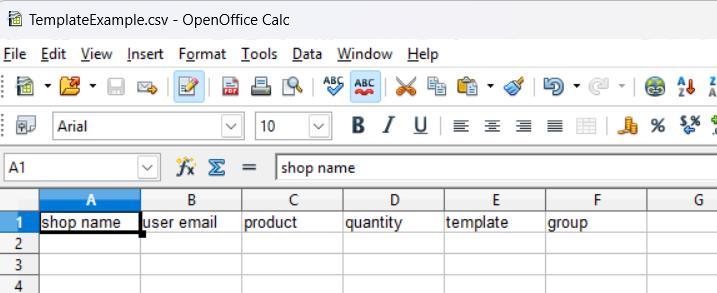
If Order Template Group is used in the CloudSuite App, also add the field group as the last column to the file. Make sure the column is filled with the name of the Group (for example: Order lists) to make sure the template is shown in the user accounts.
When one product code is used for multiple articles, it is not possible to use product codes in the product column of the import file. Instead, you have to add the products to the file using the import key. You can find the import key in the Import tab of the product details.
Importing the File
- In the CloudSuite App, go to Order Management > Order Templates > Import Order Template. A pop-up appears.
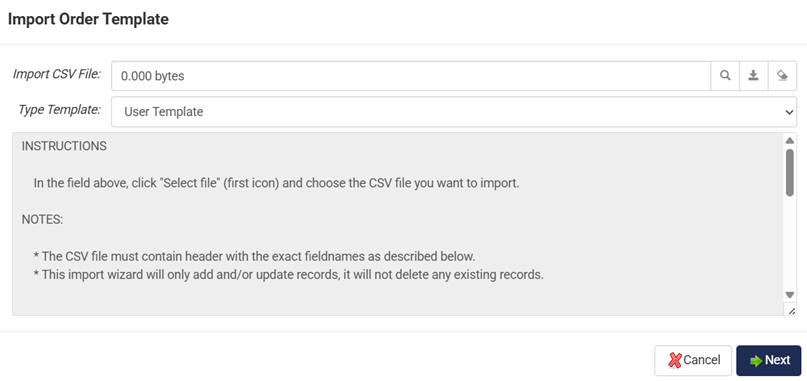
- Next to Import CSV File, click the 'magnifying glass' icon and choose the
.csvfile you want to import. - Next to Type Template, choose if you want the template to be a
- User Template (this can be edited by a user) or a
- Customer Template (this cannot be edited by a user).
- Click Next to start the import.
Note that the import process will only add and/or update records. It will not delete any existing records.