Blocking a Customer
You can block a customer from placing further orders and display the reason for the blocking.
Defining the Possible Reasons
First, you need to create one or more reasons for blocking a customer in the webshop.
- In the CloudSuite App, go to Other Settings > eCommerce Texts and click New to create a new text.
- When filling in the details:
- As the Type, choose Reason Blocked Customer.
- In the field Text, enter the reason that will be shown to the customer. This can be translated if your webshop uses multiple languages. Variables can be used in the text, as shown in a pop-up.
- The other fields can be left empty.
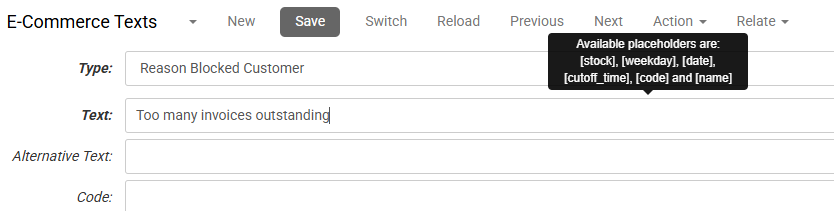
- Click Save.
Repeat these steps for each possie reason you may want to use.
Blocking the Customer
After creating the set of reasons, you can select one of these when you block a customer from ordering in the webshop.
- In the CloudSuite App, go to Customers > Customers and open the customer you want to block.
- Go to the tab Accounting.
- Check the box behind Blocked: the field Reason blocked appears.
- Select the reason from the available options in the field Reason blocked.
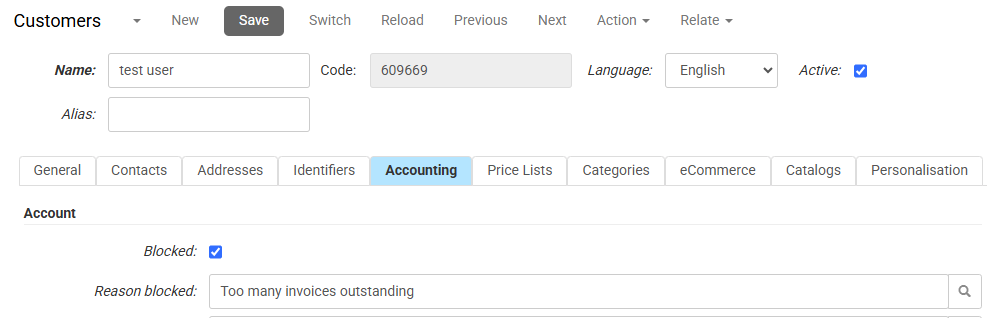
- Click Save.
Result
When the customer attempts to place an order in your webshop, a message will be displayed in the bottom right corner of the shopping basket, similar to the image below:
 The layout of the notification depends on your webshop design/theme.