Excluding Products from Returns
If you use the Return Merchandise Authorization (RMA) Module, you can exclude certain products from returns. This module is not active by default. If you are interested in using this feature, please contact your consultant or Customer Support.
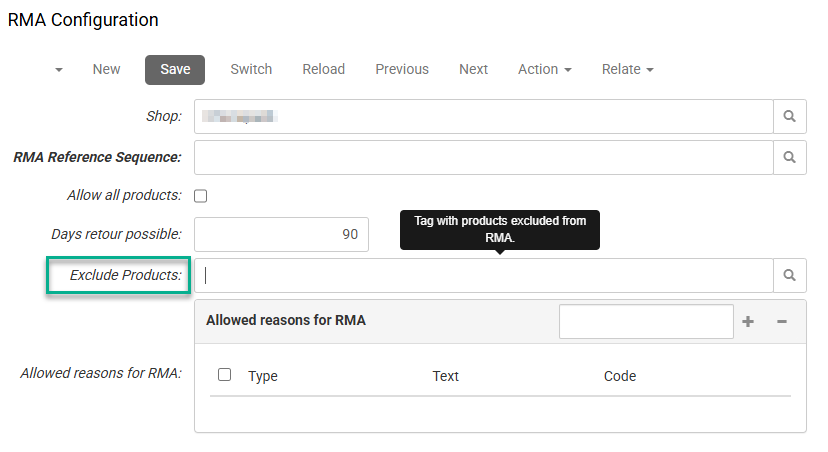
- In the CloudSuite App, go to Order Management > RMA > RMA Configuration and open the shop from which you want to exclude products for returns.
- Edit the details so that the appropriate products are listed next to Exclude Products, based on a tag. Click the magnifying glass icon to do so.
- In the new window that opens, you can create a new tag (this works the same as creating a tag in PIM > Attributes > Tags).
- Enter the Name of the tag.
- As the Special Type Tag, choose Standard.
- In the tab Products, add products by searching the product in the Search bar or clicking the + icon and selecting the product.
- Click Save near the bottom of this window when you have added all the products.
- Click Save to save all changes to the RMA Configuration.
When a customer opens the Returns form on the shop they will see all products, including those that are excluded from returns. For excluded products, a notification will be displayed that return is not possible.