Abandoned Basket
When a registered customer places items in their basket but then leaves the webshop without checking out, a campaign email can be sent.
This functionality needs to be configured in four locations within the CloudSuite App. Some configuration must be carried out by CloudSuite. Please contact your consultant or Customer Support for more information.
Note that as a webshop owner, you must have permission to send these emails to your customers: they must opt in.
System Configuration
In order for emails to be sent automatically, a so-called planned action must be scheduled by Consultancy.
Creating the Email Template
- In the CloudSuite App, go to Stores > Shop Emails and click New to create a new email template.
- In the email details, as the Type choose Reminder for Auto saved baskets.
The Consultancy team is responsible for creating the email templates. We will ensure that the desired text and formatting are thoroughly tested in collaboration with you.
Setting up the Sales Configuration
- In the CloudSuite App, go to Order Management > Configuration > Sales Configuration.
- In the sales configuration, next to Hours for mail save Basket specify the number of hours to wait before sending the email after items are left in the shopping basket. (Enter 0 if you wish to manually send the emails as described below.)
Monitoring and Manually Sending the Emails
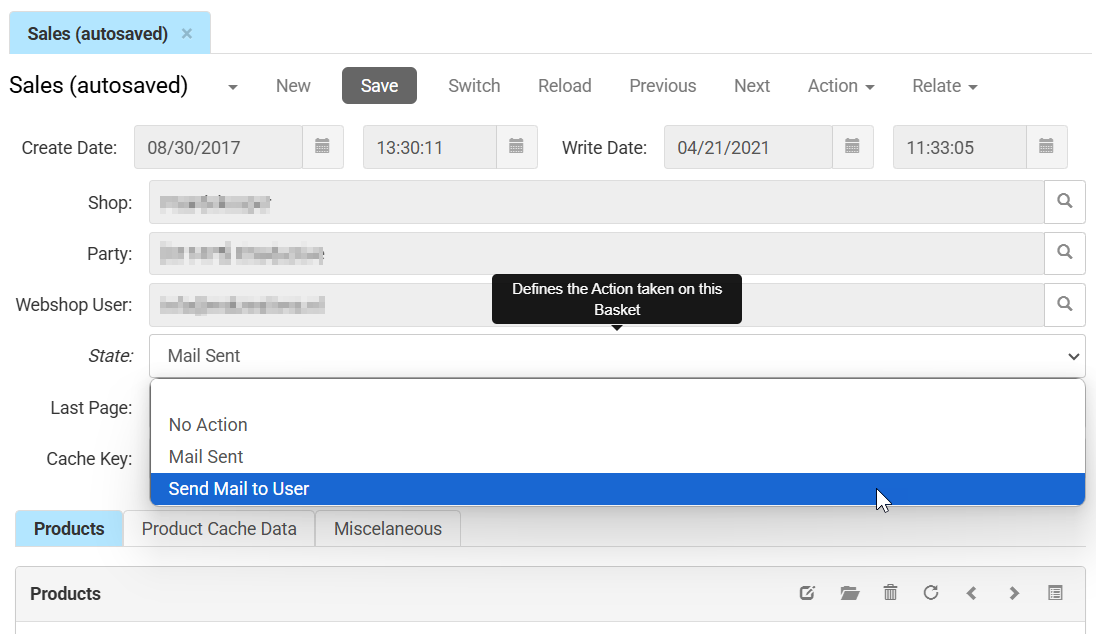
- In the CloudSuite App, go to Order Management > Sales (autosaved).
- Find the desired sale and look in the State column if an email has been sent.
- To manually send the email:
- Open the sale to edit its details.
- Next to State, choose Send Mail to User.
- Click Save.
The email is (re-)sent independently of the scheduled action set up by Consultancy.